
Your accountant wants the revenue of a month or a year in a spreadsheet. You download it as a CSV file that Excel opens straight away.
Steps
Open Today and scroll to Revenue.
Click Export.
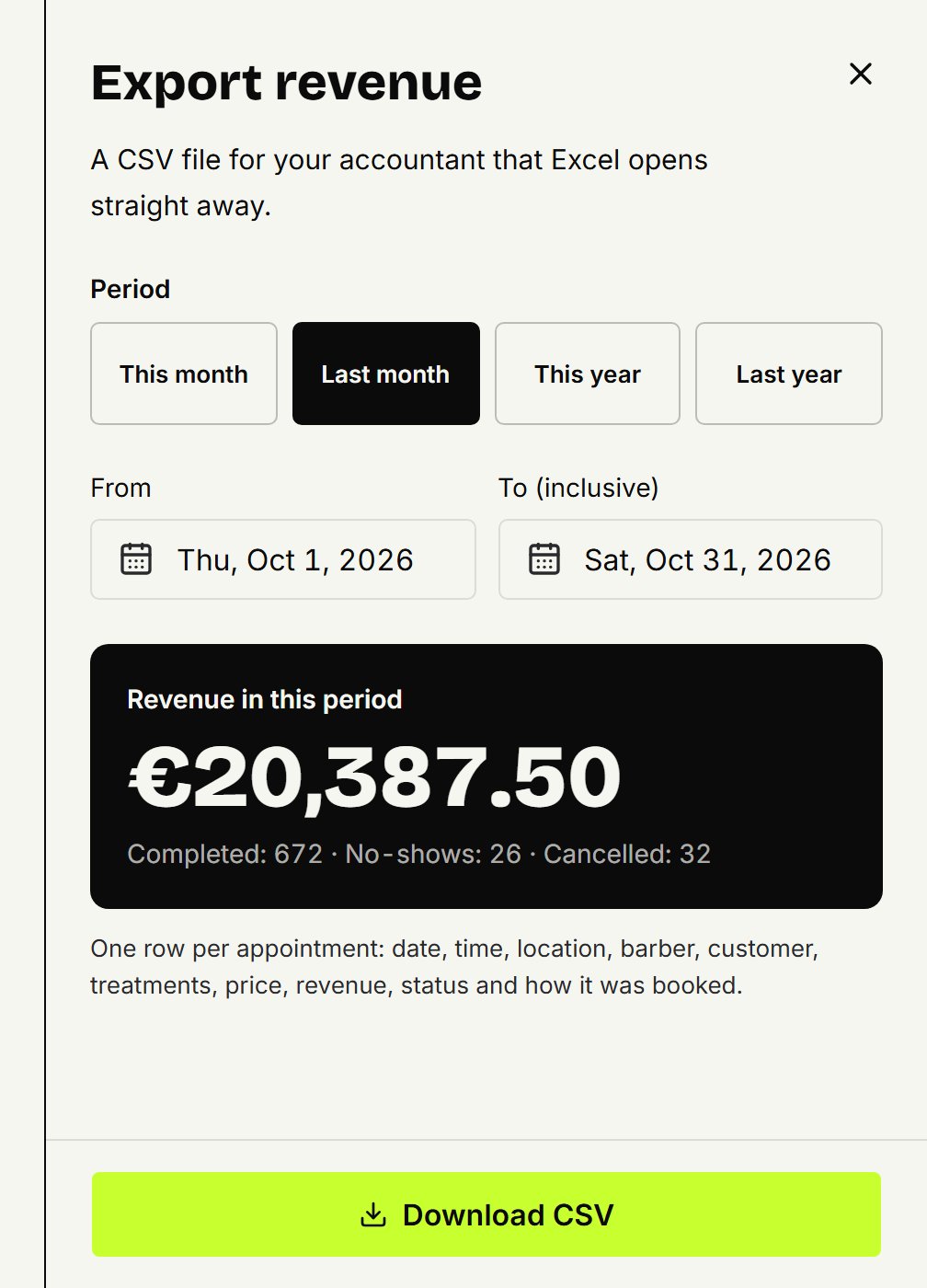
Choose This month, Last month, This year or Last year, or pick the dates yourself under From and To (inclusive).
If you have more than one location, choose one, or All locations, under Location.
You see the revenue and the number of appointments for that period straight away. Click Download CSV.
What's in the file
One row per appointment in the period: date, time, location, barber, customer, treatments, price, revenue, status and how it was booked. The revenue column is the price for a completed appointment and zero for the rest, so its total is your revenue for that period, as on Today. Appointments still to come are in it as Booked. If there are a great many, coupehub asks for a shorter period.
A barber exports the same way, with only their own appointments.
Downloading everything from your shop
As the owner, you can also download everything at once: your customers, appointments, barbers, working hours, time off, treatments, locations, gift cards and photos, as one zip file of CSV files. There's no separate export of just your customers; your customer list is in this file, and you can import it again.
Open Settings and choose the tab after Online booking.
At the bottom, under Your data, click Download everything.
Updated on November 11, 2026
Did this help?