
You move an appointment by dragging it, and change or cancel it from the appointment itself. The owner can do this with every appointment, a barber with their own.
Steps
Open Agenda and go to the day.
On a laptop or tablet, drag the appointment to another time, or to another barber's column at the same location. It moves in steps of 5 minutes.
Something else to change? Click the appointment, then Change. You can pick another barber, Start time, Treatments, Customer or Note. If you pick another barber, choose the treatments again too.
Click Save changes.
If the barber is already busy or away then, or doesn't do all the treatments, the change doesn't go through and you see why.
To another day
You can't change an appointment's date. Cancel it and add a new one on the other day. A customer can also move their appointment themselves: how that works for the customer.
Cancelling
Click the appointment, then Cancel appointment. You can do this until the appointment is over. The time is free again, and the appointment sits folded away below the day. A mistake? Open it there and click Book again. That works while it isn't over yet and the time is still free.
coupehub doesn't tell the customer you moved or cancelled their appointment. Call or message them yourself, for example with Call in the appointment.
Blocking time
A meeting or an hour away? Click a free slot or New appointment, and choose Block time.
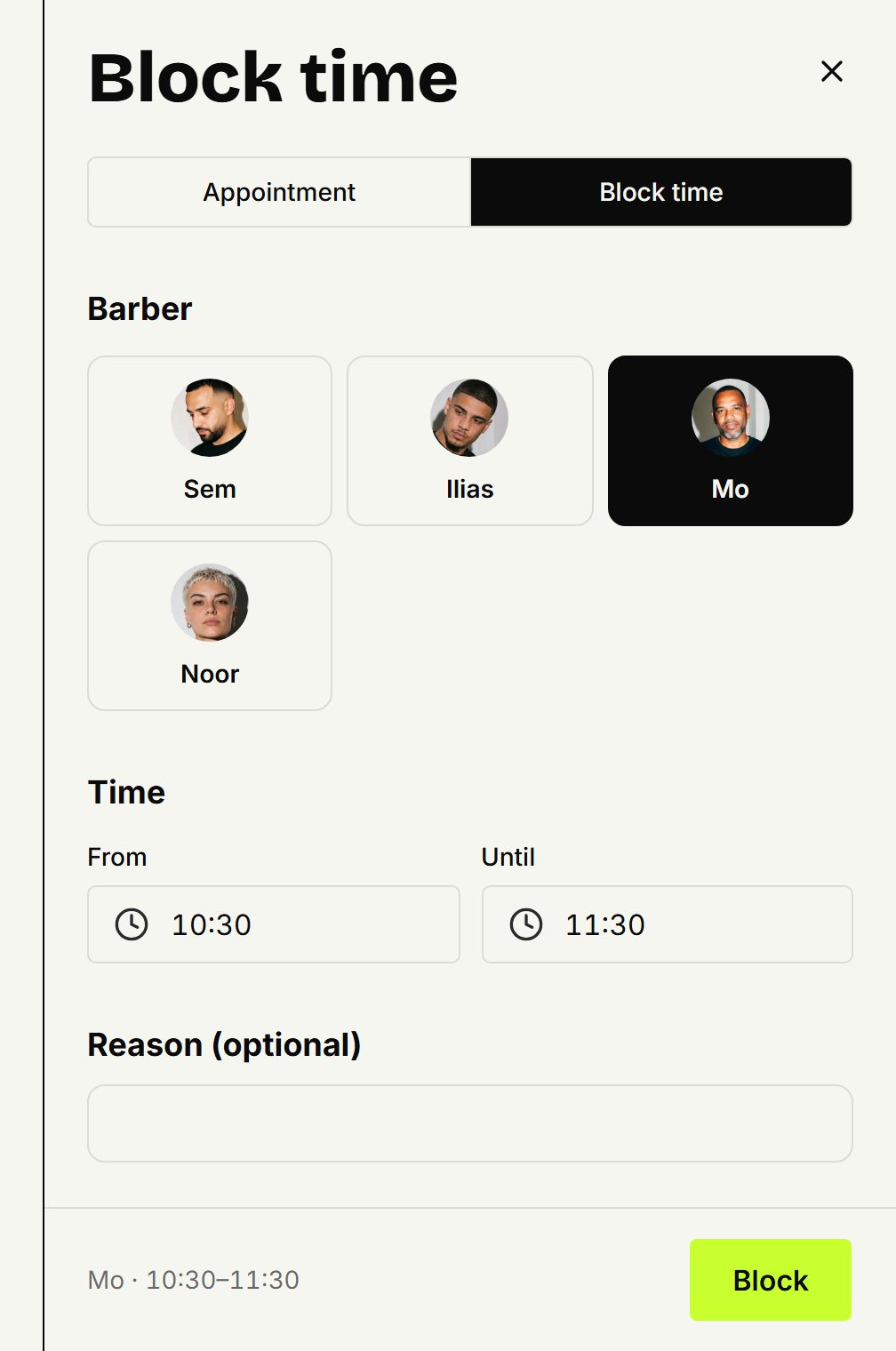
Pick the barber, From and Until, and a reason if you like. Click Block. Nobody can book that barber then, online included. To take it away, open the block and click Remove block. For whole days off, use time off.
Updated on November 11, 2026
Did this help?