
With your own calendar link, your appointments also show in your phone's calendar. Your calendar app fetches them by itself, so there's nothing to copy across.
Steps
If you're a barber, open Profile. If you're the owner, open Barbers and your own card, marked You.
Under Your agenda in your own calendar, click Make link.
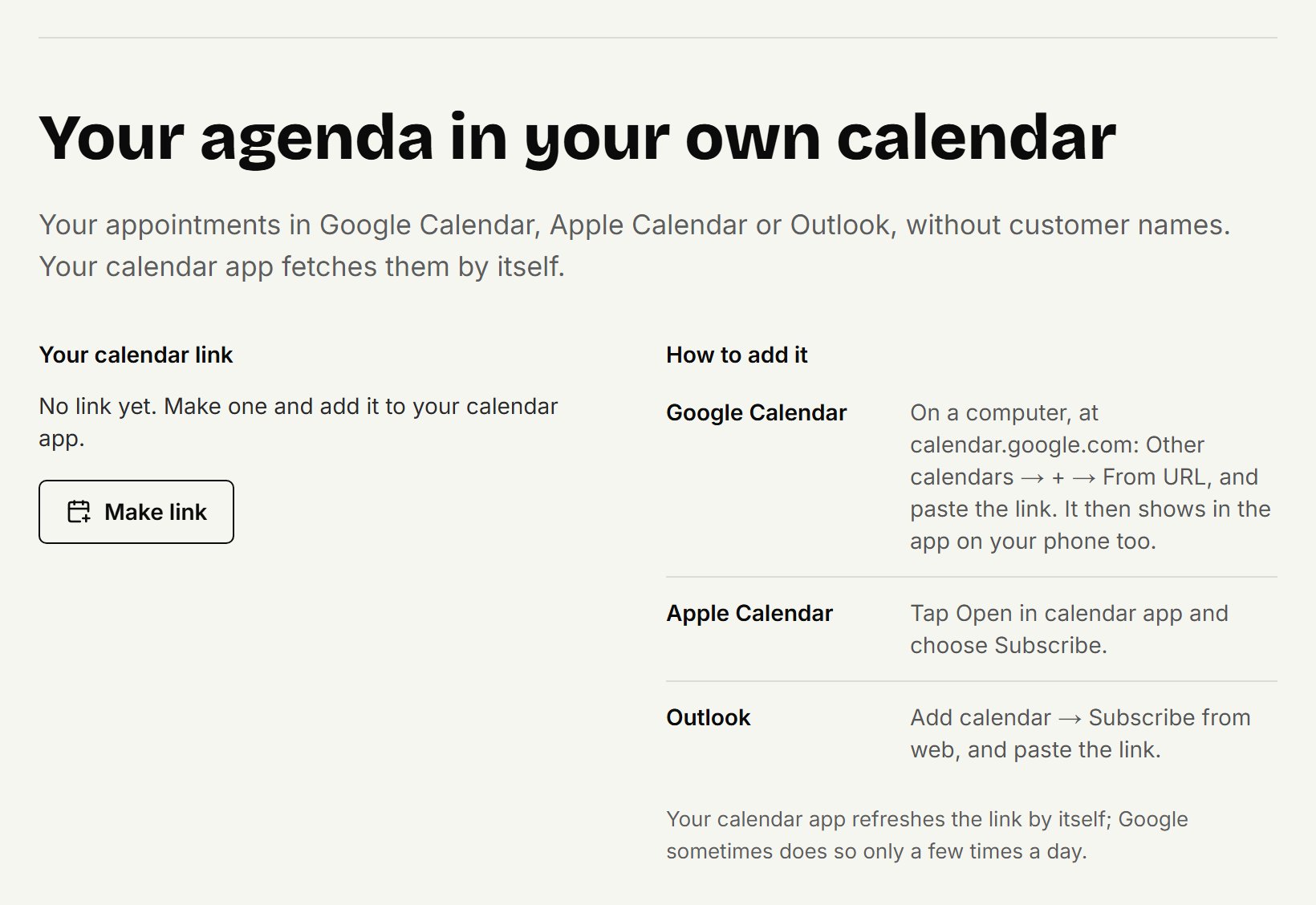
Click Copy link.
Add the link to your calendar:
Google Calendar: on a computer, at calendar.google.com, choose Other calendars, then +, then From URL, and paste the link. It then shows in the app on your phone too.
Apple Calendar: tap Open in calendar app and choose Subscribe.
Outlook: choose Add calendar, then Subscribe from web, and paste the link.
What's in it
Your own appointments from 30 days back to 90 days ahead, with the treatments, the length and the location. Each one links to that day in coupehub.
No customer names, numbers or notes: those stay in coupehub.
A no-show stays, marked "no-show". A cancelled appointment disappears. Blocked time and time off show as "Busy".
Changes in coupehub come through by themselves. Google sometimes only fetches them a few times a day. It doesn't work the other way round: what you change in your calendar app changes nothing in coupehub.
Lost the link, or shared it?
You only see the link once. Click Make a new link: the old link stops right away, and you add the new one again. When a barber is removed from the shop, their link stops too.
If you're the owner and don't cut hair yourself, you have no appointments of your own, so no calendar link.
Updated on November 11, 2026
Did this help?