
The agenda opens on today, with everyone side by side: each barber gets a column with their photo, name and number of appointments. Everyone in the shop sees the whole agenda, but a barber only changes their own appointments.
Steps
Open Agenda.
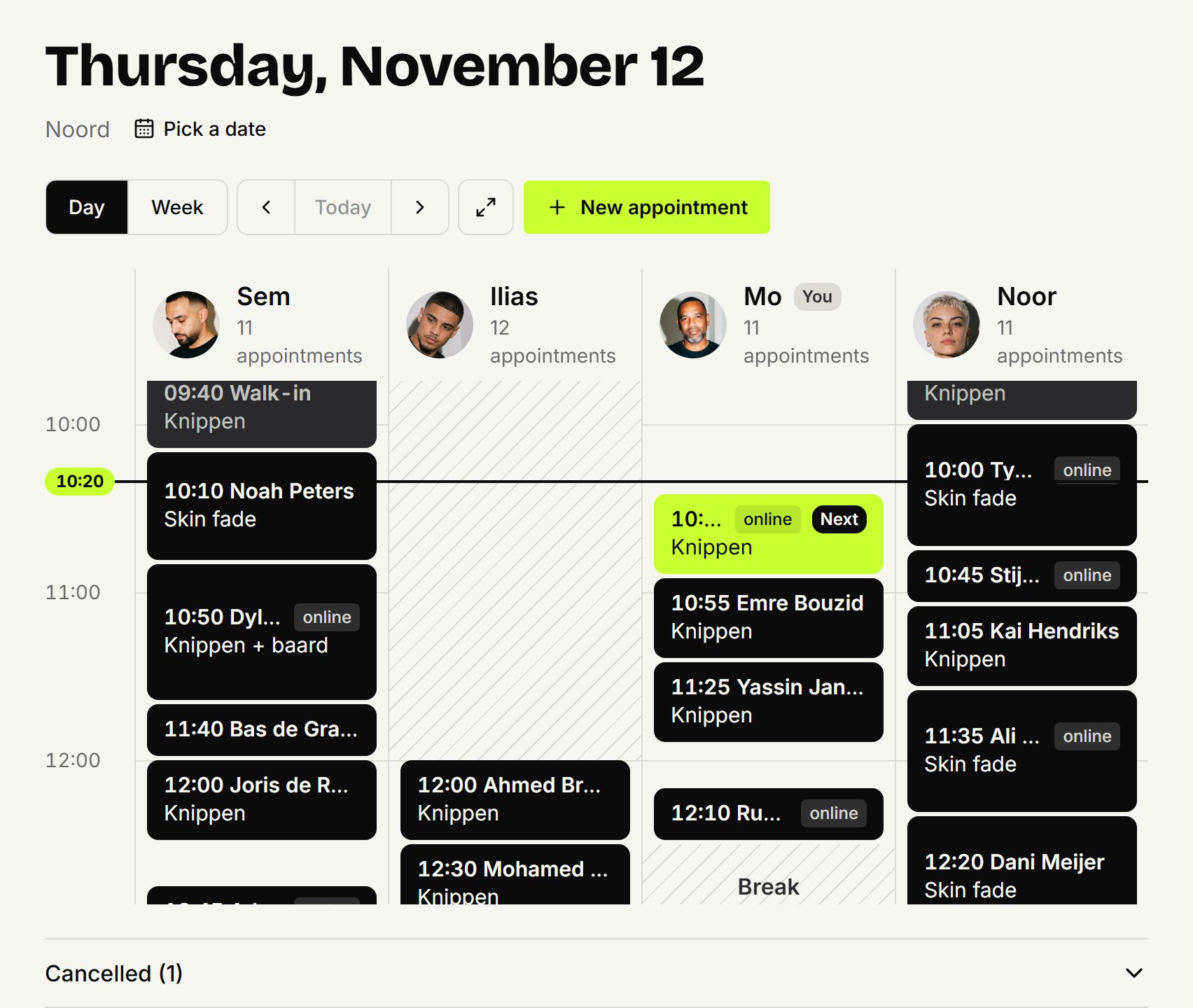
Use the arrows for the previous or next day, Today to go back to today, or Pick a date to jump to a date.
With more than one location, choose one under Location, or All locations.
Click an appointment to open it.
What you see
Black is an appointment still to come, grey one that's over.
Lime is your next appointment, or the shop's next one if you're not in the agenda yourself.
An appointment with only an outline: the customer didn't show up.
Hatched is time nobody books: a break, time off, blocked time or hours the barber doesn't work.
Today, a line marks the current time. Cancelled appointments sit folded away below the day. The agenda refreshes itself every 30 seconds.
One barber's week
Click Week for one barber's week, starting with your own. Choose another barber with the button showing their name. Click a day or an appointment to go to that day. There's no week of everyone at once: it doesn't fit side by side.
On your phone or a tablet
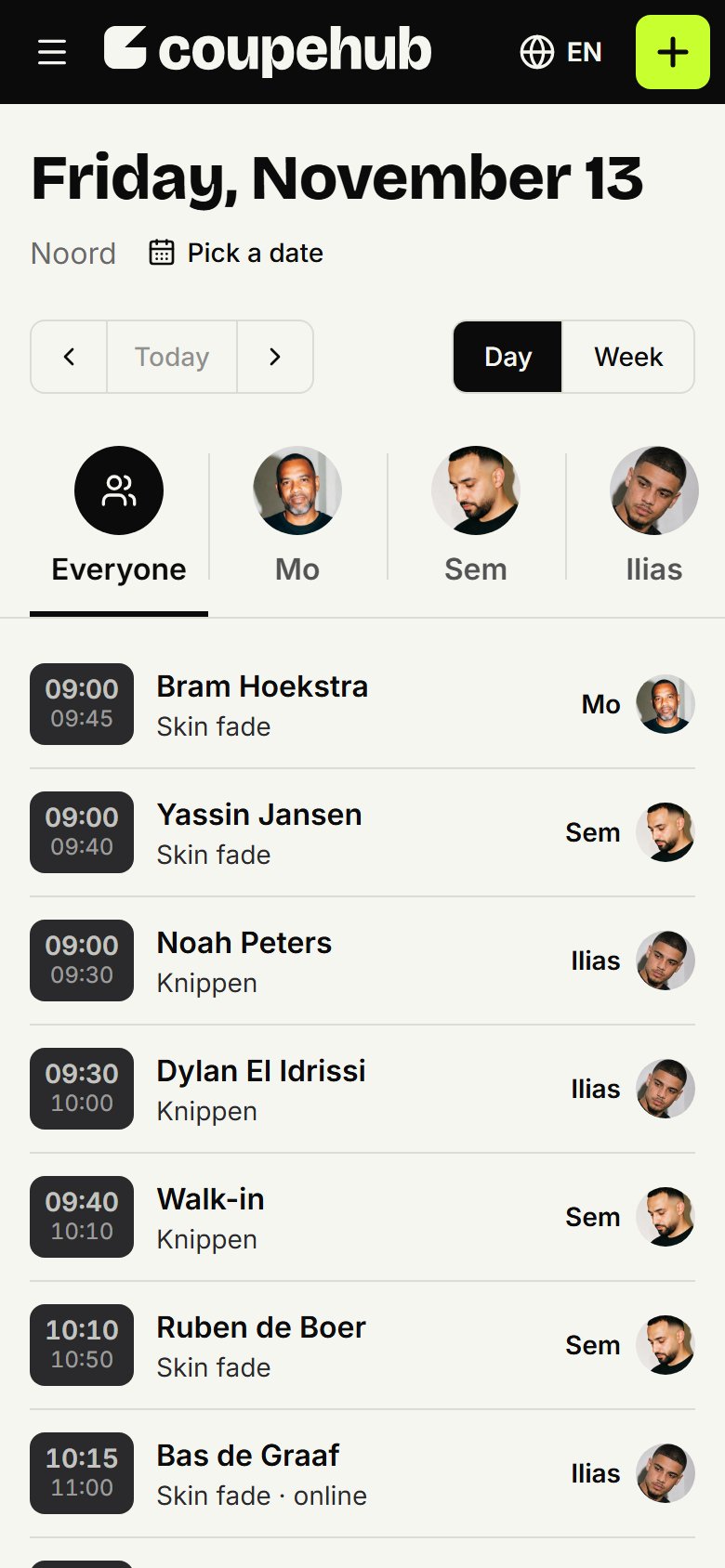
In your phone's browser, Everyone comes first: all of the day's appointments in a list, each with its barber. Tap a barber to see just their column.
On a tablet at the counter, the button with two arrows (Full screen) puts the agenda on the whole screen. Press Esc or the same button to go back.
Updated on November 11, 2026
Did this help?