
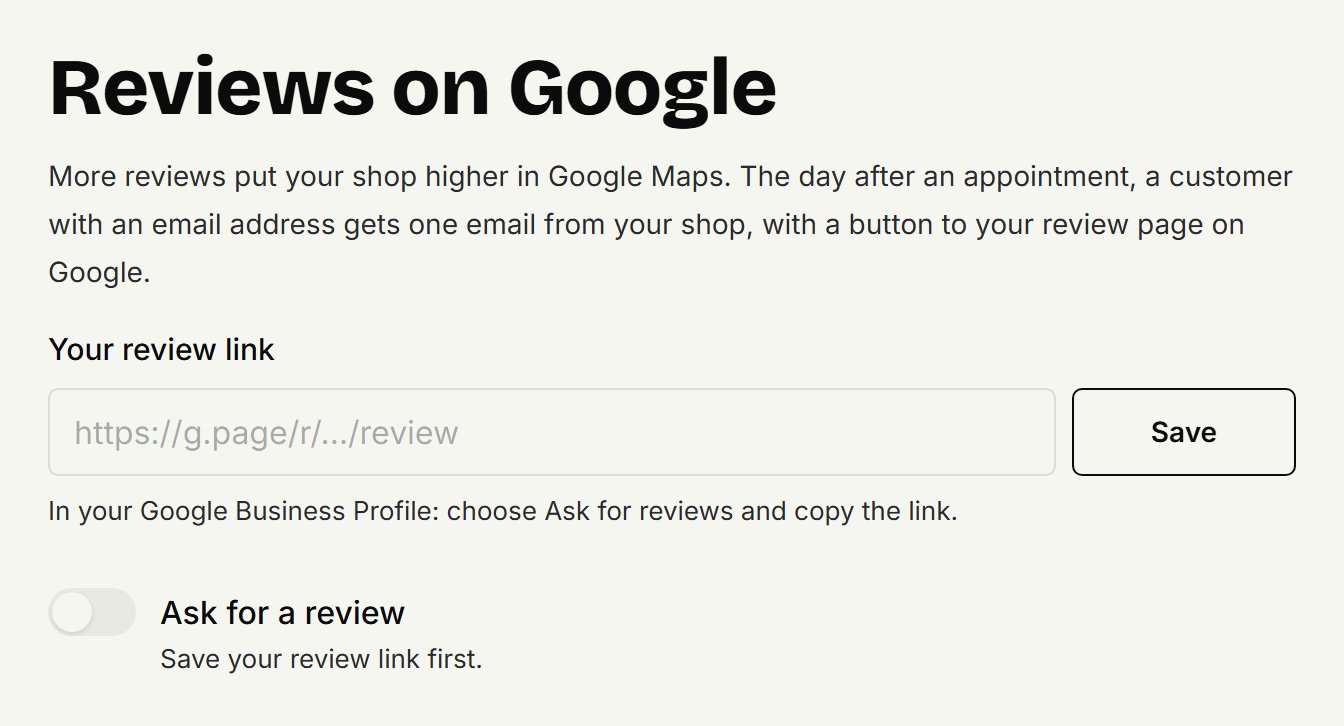
More reviews put your shop higher in Google Maps. coupehub asks your customers for one after their visit: the day after their appointment they get one email from your shop, with a button to your review page on Google.
Steps
Find your review link in your Google Business Profile: choose Ask for reviews there and copy the link.
In coupehub, open Settings, then Online booking.
Under Reviews on Google, paste the link at Your review link and click Save.
Switch on Ask for a review. It's saved straight away.
Who gets an email
Customers with an email address, the day after their appointment, from 10:00 in the morning. The email is in the language the customer booked in.
Only after an appointment that went ahead. If it's marked No-show or Cancelled, no email goes.
At most once every 180 days per customer, and never to a banned customer or to someone who unsubscribed.
Older appointments don't get one. So switching it on doesn't email all of last month's customers.
What the customer sees
While it's on, your booking page tells customers, next to their details, that your shop may email them once after their visit to ask for a review. Customers you add to the agenda yourself don't see that, so tell them yourself.
The email thanks the customer for their visit, with the button Write a review. At the bottom is Unsubscribe: whoever clicks it never gets a review request from your shop again. Their appointments and reminders carry on as usual.
Stopping
Switch Ask for a review off again. Removing the link and saving switches it off too.
Updated on November 11, 2026
Did this help?