
Under Messages you email customers who chose it themselves: a reminder by itself when it's time to book again, and now and then an offer you write yourself. Only the shop's owner sees and does this.
Who you may email
Customers choose it themselves, with a tick when they book online. The box sits under the email address at Your details, starts unticked, and only shows once they type an email address. You can't sign a customer up yourself. How many customers you may email is at the top, at May be emailed. Under Customers, May be emailed lists them.
Steps
Open Messages.
Under Reminder to book again, switch on Send reminders and choose the weeks at After how many weeks. It's saved straight away.
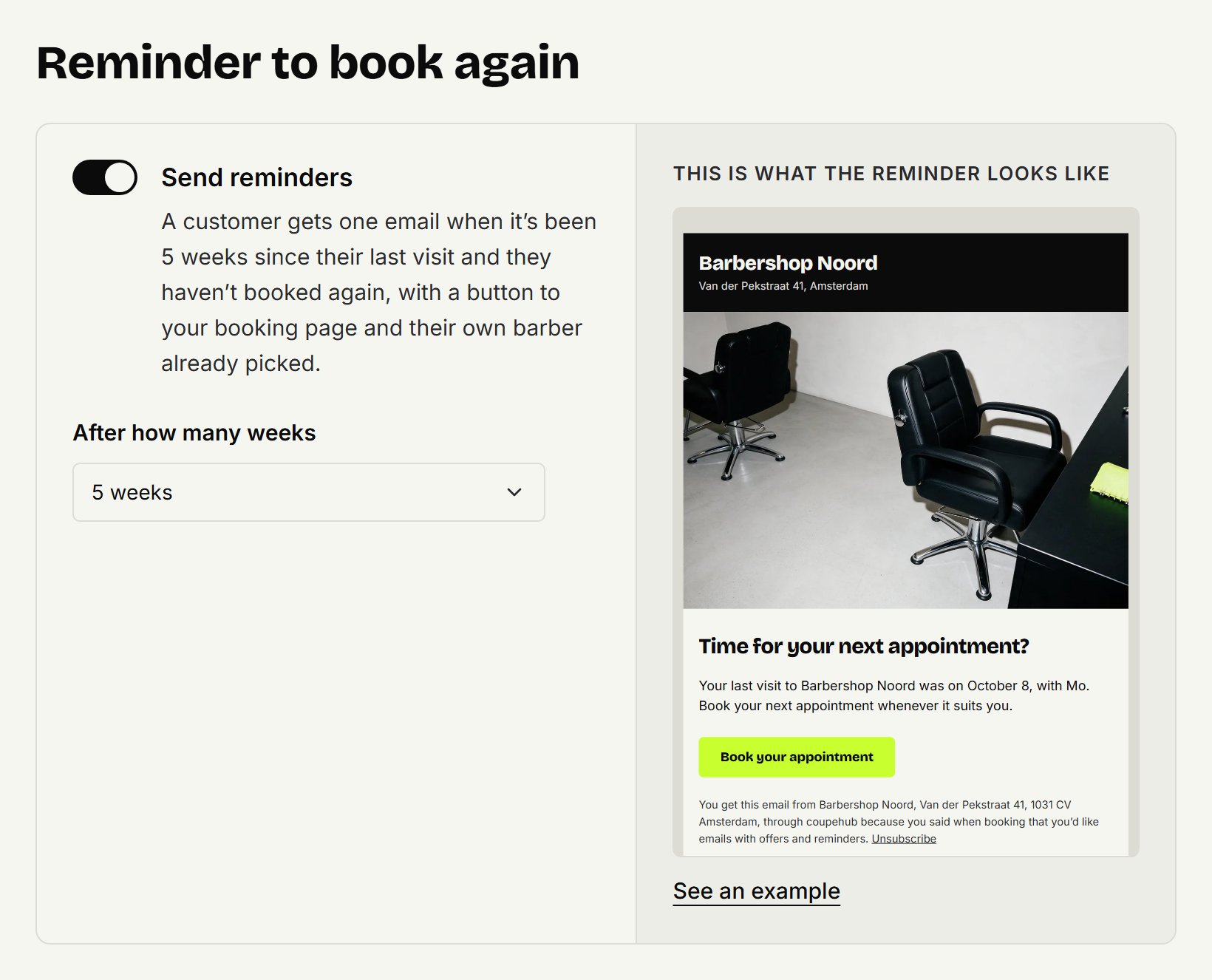
When that many weeks have passed since a customer's last visit and they haven't booked again, they get one email with a button to your booking page and their own barber already picked. That happens once per visit, and never to a banned customer. Customers whose weeks were already up when you switched it on don't get one. See an example shows the email as a customer gets it.
Sending an offer
Under Messages, click New message.
Fill in Subject and Message. A blank line starts a new paragraph. For an offer, say its conditions, such as until when it runs.
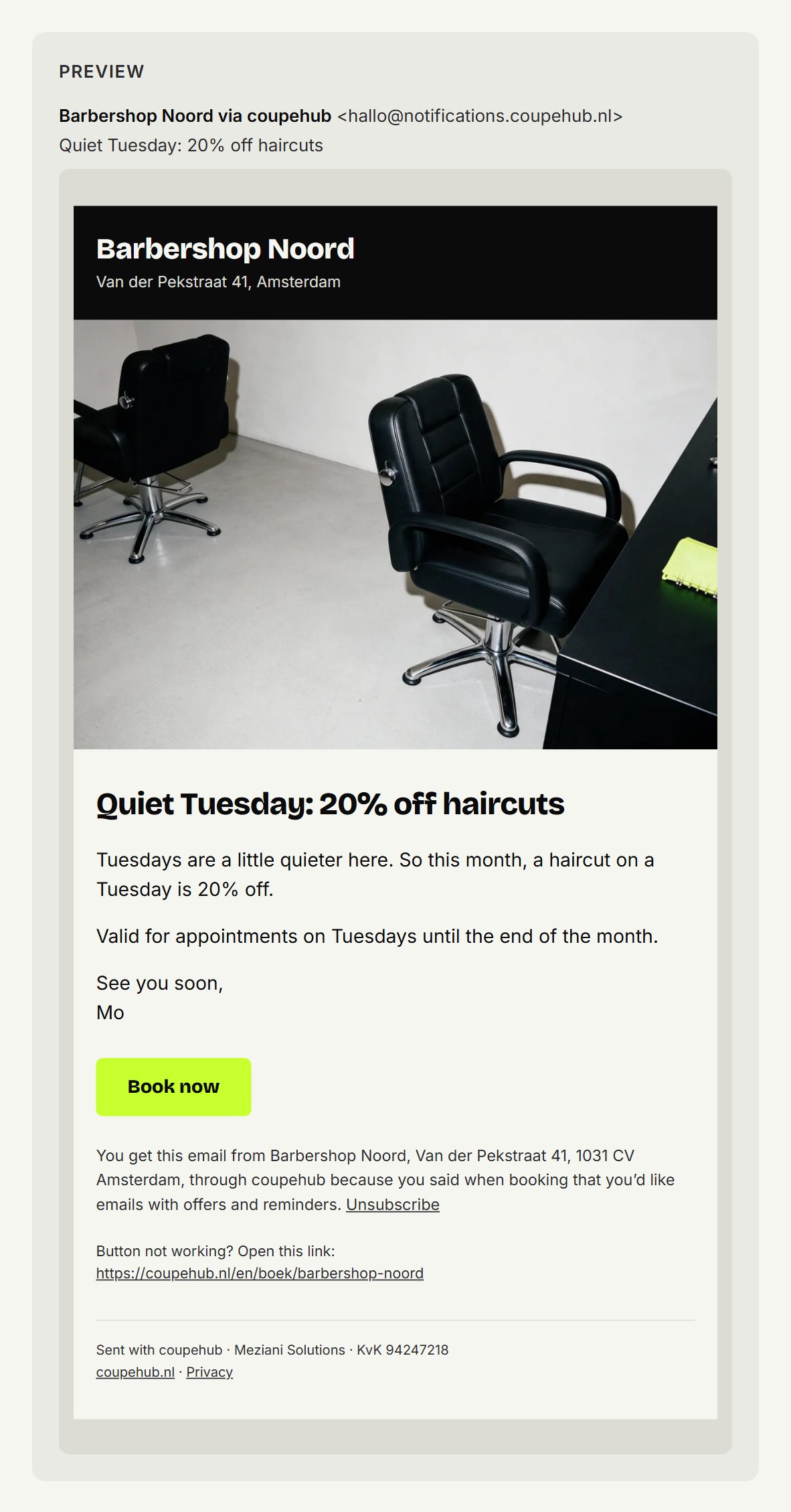
Leave ‘Book now’ button underneath on for a button to your booking page under your text. Beside the form you see the email as your customers get it.
Click the button at the bottom, which says how many customers it goes to, then Yes, send. A message can't be taken back once it's sent.
Within a few minutes everyone has it. You can send 2 per calendar month; under Offers you see how many you have left this month. When a customer replies, it goes to the owner's email address. On a narrow screen, you switch between Write and Preview.
What your customer gets
The email comes from your shop via coupehub, in the language the customer booked in. At the top are your logo, your shop's name and town, and your cover photo: you choose those under Settings, Online booking (see Your booking page). Without a logo or photo, only the name is at the top. At the bottom it says why the customer gets the email, with Unsubscribe.
What it brings in
Booked afterwards counts the customers who made an appointment within 14 days of an email, for each offer and, at the top, for this month. We only look at your own agenda; we don't track who opens an email or clicks in it. Sent this month counts reminders and offers together.
Unsubscribing
Customers unsubscribe with Unsubscribe at the bottom of every email, or with their email app's own unsubscribe button. After that they get no more reminders to book again or offers; their confirmations and appointment reminders carry on. If they ask you, open their customer card and, under Messages, click Unsubscribe. After that only the customer can sign up again, when booking. What your customers read about this is in Messages from a barbershop.
Updated on November 12, 2026
Did this help?