
Your treatments are what customers can book with you. They appear in the same order on your booking page, with their price and duration.
Steps
Open Treatments and click Add treatment.
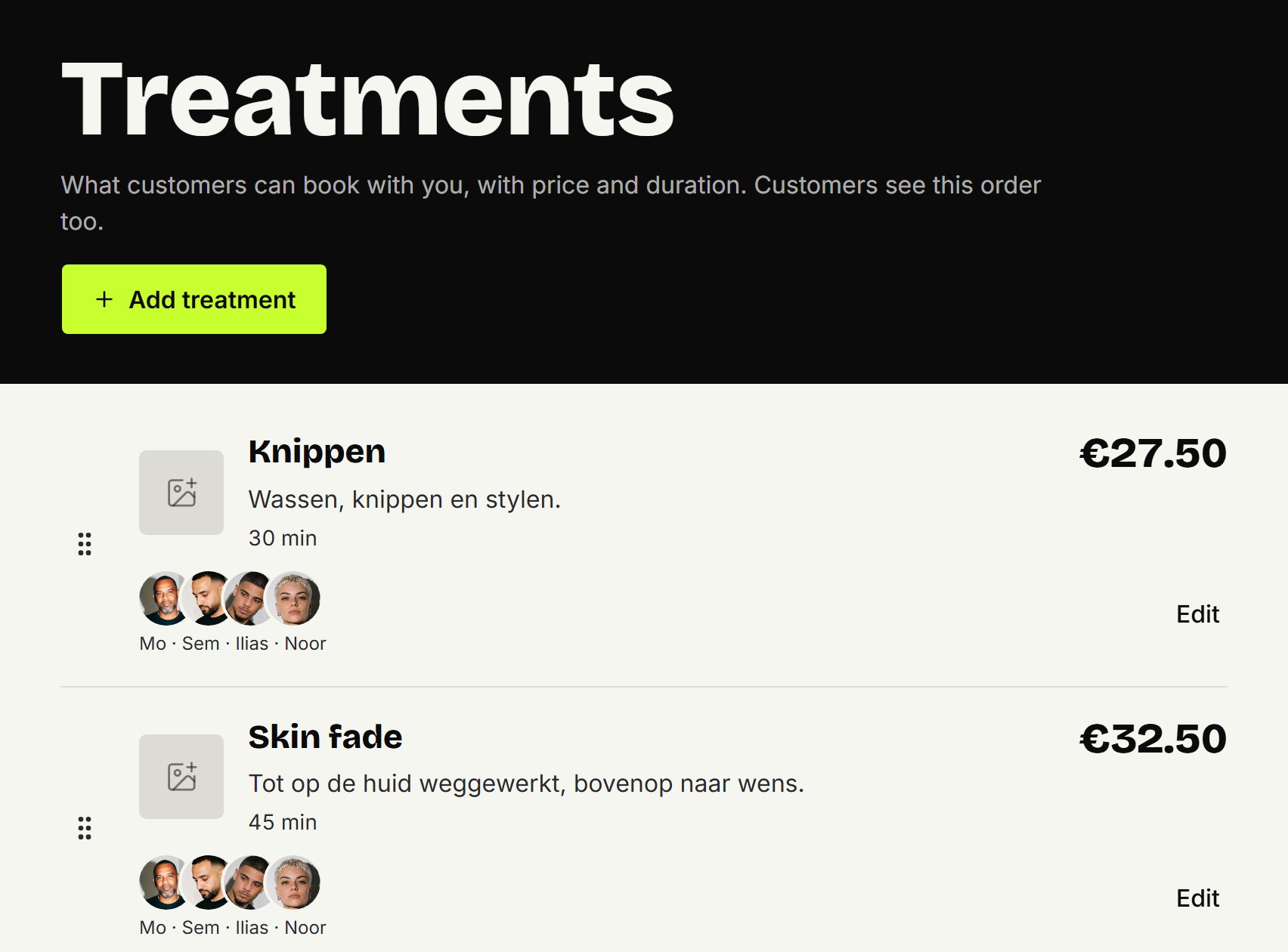
Fill in Name, Price and Duration in minutes. You can add a Description too, for example what's included.
Click Add. The panel stays open, so you can add a photo straight away.
Switch the treatment on for the barbers who do it. Nobody does a new treatment yet, so customers can only book it after that. Treatments per barber explains how.
Adding a photo
Click Edit on the treatment, then Choose photo and Save photo. A photo from your phone is fine: it's cropped square. The photo shows in the price list on your booking page and when customers choose a treatment. Once one treatment has a photo, the others show their first letter until they have one too.
Changing the price, duration or name
Click Edit, change what you need and click Save. Appointments already made keep their old price and duration.
Changing the order
Drag a treatment by the handle on its left to another place. Customers see the same order.
Taking a treatment away
Click Edit, then Archive. Customers can no longer book it; appointments already made stay as they are. Archived treatments sit at the bottom of the list. Restore brings one back, at the end, and the same barbers do it again.
Updated on November 11, 2026
Did this help?