
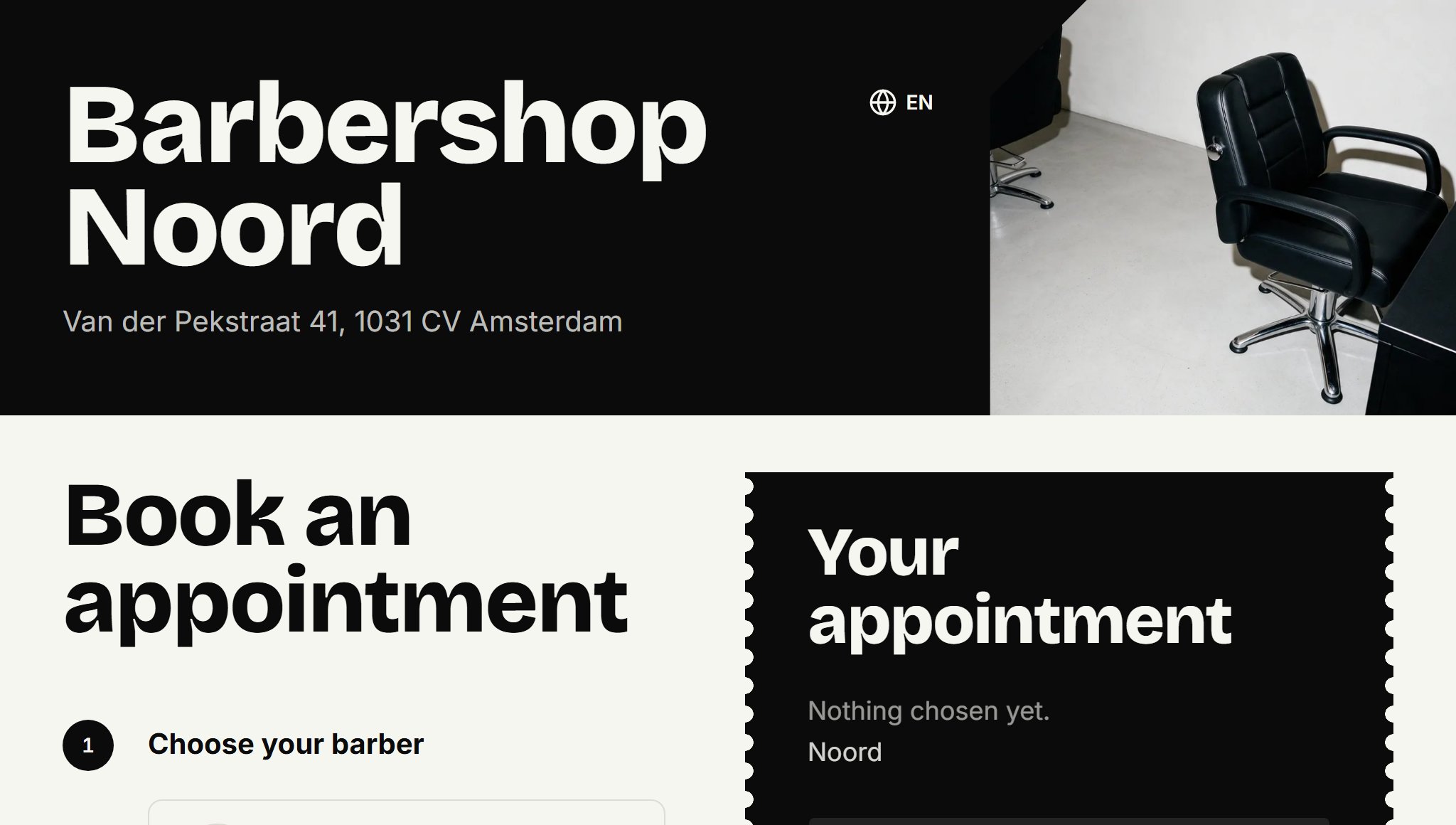
Your booking page is your shop's page where customers book. At the top are your logo, your name and a cover photo. Below come the booking steps, your price list, where and when you're open, and your barbers.
Steps
Open Settings and choose Online booking.
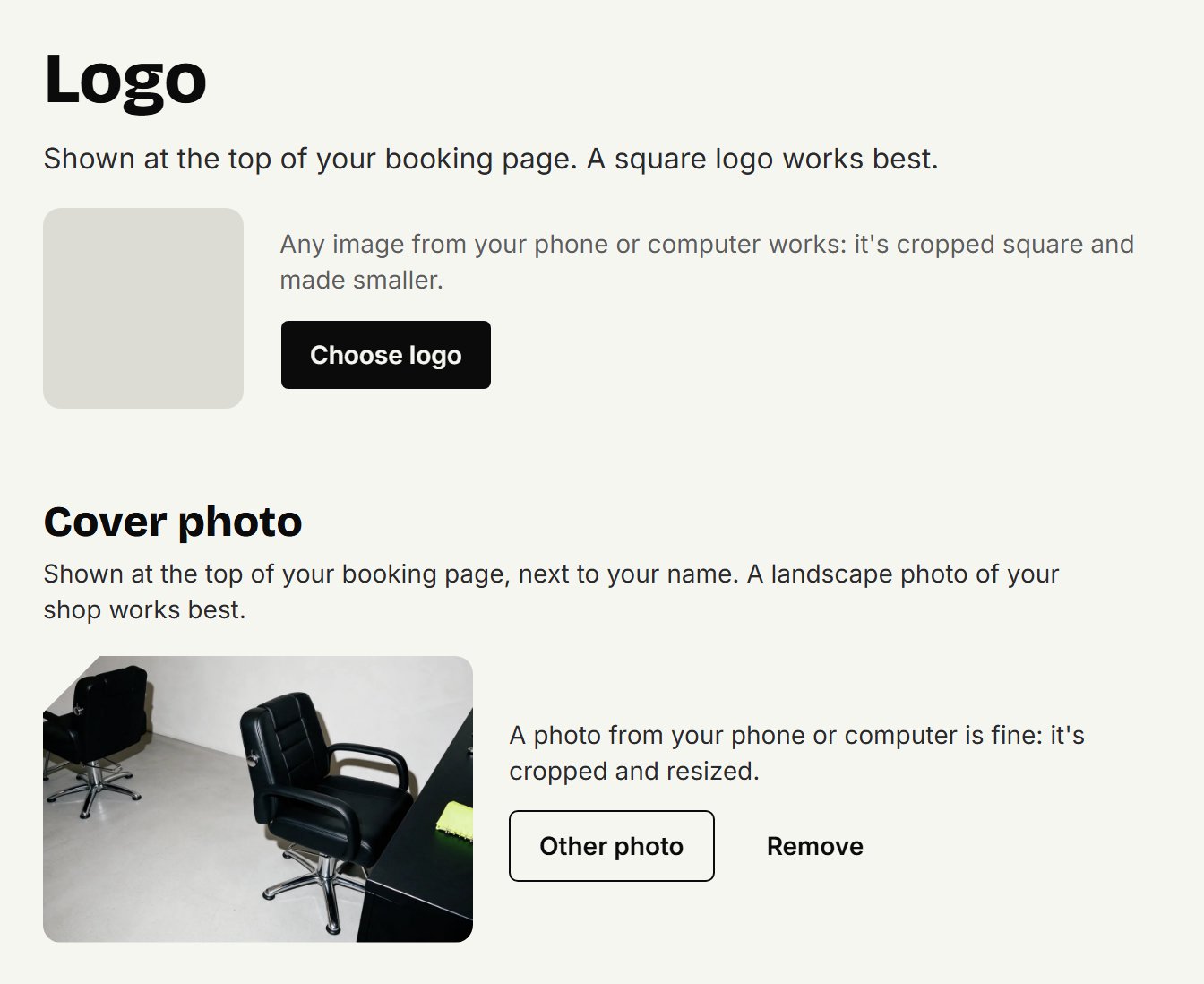
Under Logo, click Choose logo, pick a file and click Save. A square logo works best.
Under Cover photo, click Choose photo, then Save. A landscape photo of your shop works best. Without one of your own, customers see a standard photo.
Check under Preview how the top of your page looks.
A photo per location
If you have more than one location, a customer first chooses where to go. You add a photo per location under Settings → Locations → Manage, at Photo. Without one, your cover photo shows there. The same photo shows on your card in the barbershop overview on coupehub.nl.
Your logo, your name and the photo also head the emails your customers get from you: the confirmation, a reminder, a moved or cancelled appointment, the waitlist, a gift card, a review request and your messages.
Treatment photos
Each treatment can have a photo. It shows in your price list and when customers choose a treatment. Adding and changing treatments explains how to add one.
Your barbers
Under Barbers your barbers appear with their photo, name and a short line about themselves. You fill that in on their profile: see Filling in a barber's profile. Only barbers who can be booked, with a location and at least one treatment, are shown.
The rest of the page
The price list comes from your treatments, the address and opening hours from your locations. Change something there and it's on your page straight away.
Updated on November 12, 2026
Did this help?