
With the stamp card, a customer gets a stamp for every visit. Once they have enough stamps, you redeem their reward, such as a free haircut. Only the owner switches the stamp card on; anyone in the shop can redeem a reward.
Steps
Open Settings and choose Online booking.
Under Stamp card, use Stamps for a reward to choose how many stamps a reward takes.
Fill in the reward under Reward and click Save.
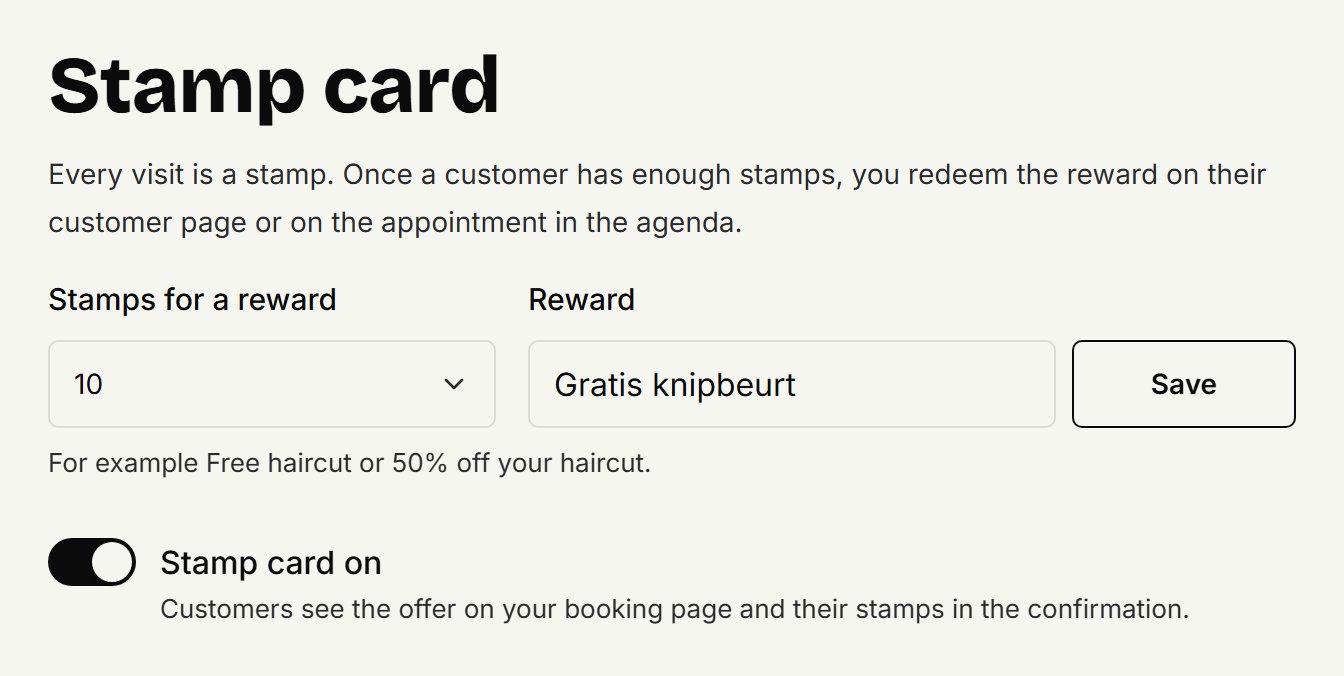
Switch Stamp card on on.
Customers then see the offer on your booking page, and their stamps in their appointment's confirmation.
How stamps are added
Every completed appointment is one stamp, however many treatments it had. A no-show or a cancelled appointment doesn't count, and if you later set an appointment to no-show, its stamp comes off again. Only visits from the moment you first switched the stamp card on count, so your regulars don't all have a reward straight away.
Redeeming a reward
Open the customer under Customers, or their appointment in the agenda. An appointment only shows the stamp card when the customer has a reward ready.
Under Stamp card, click Redeem.
The stamps for one reward come off; any stamps beyond that stay.
Correcting a stamp
As the owner, click Correct on a customer's stamp card. Choose Add a stamp for a visit from before coupehub, Remove a stamp for a mistake, or Undo the last redemption.
Changing it or switching it off
Change the number of stamps and it applies to every card at once. Switch the stamp card off and it disappears everywhere, and nothing can be redeemed. Switch it back on later and the stamps are still there.
Updated on November 11, 2026
Did this help?