
When a customer keeps not showing up, or you'd rather not have them in your agenda for another reason, you ban them. They then can't book online at any of your shop's locations. Only the owner bans customers and lifts bans.
Steps
Open Customers and click the customer.
Next to Call, click the button with three dots and choose Ban.
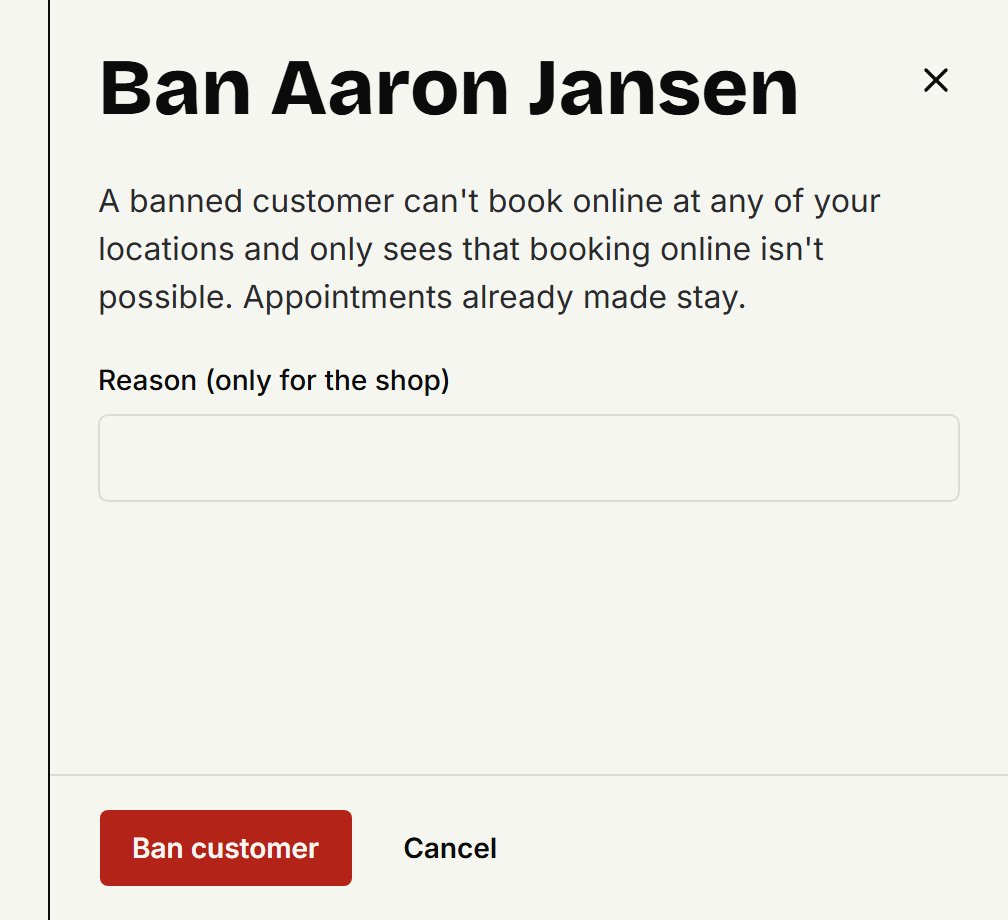
Under Reason (only for the shop), fill in why. The customer never sees it.
Click Ban customer.
What happens next
When the customer tries to book online, all they see is the message: Booking online isn't possible right now. Please contact the shop.
We recognise them by their mobile number. Appointments already made stay, but they no longer get a reminder for them. You can still put an appointment for them in the agenda yourself.
In Customers, Banned shows by their name. Choose Banned above the list to see only banned customers.
Lifting a ban
Open the customer, click the three dots and choose Lift ban. They can book online again straight away.
Banning automatically after no-shows
Open Settings, then Online booking.
Under Rules, at Ban automatically, choose after how many no-shows a customer is banned. It's Off until you change it.
Click Save.
From then on, when you mark an appointment No-show and the customer has now missed that many or more, they're banned at once. No-shows from before you switched it on count too. Their customer card then says: Automatically, after too many no-shows.
You lift it as above. Status and no-shows explains marking a no-show.
Updated on November 11, 2026
Did this help?