
More than one shop under the same name? Each location has its own address, opening hours, agenda and booking link. Your customers, treatments and barbers are shared.
Steps
Open Settings, Locations and click Add location.
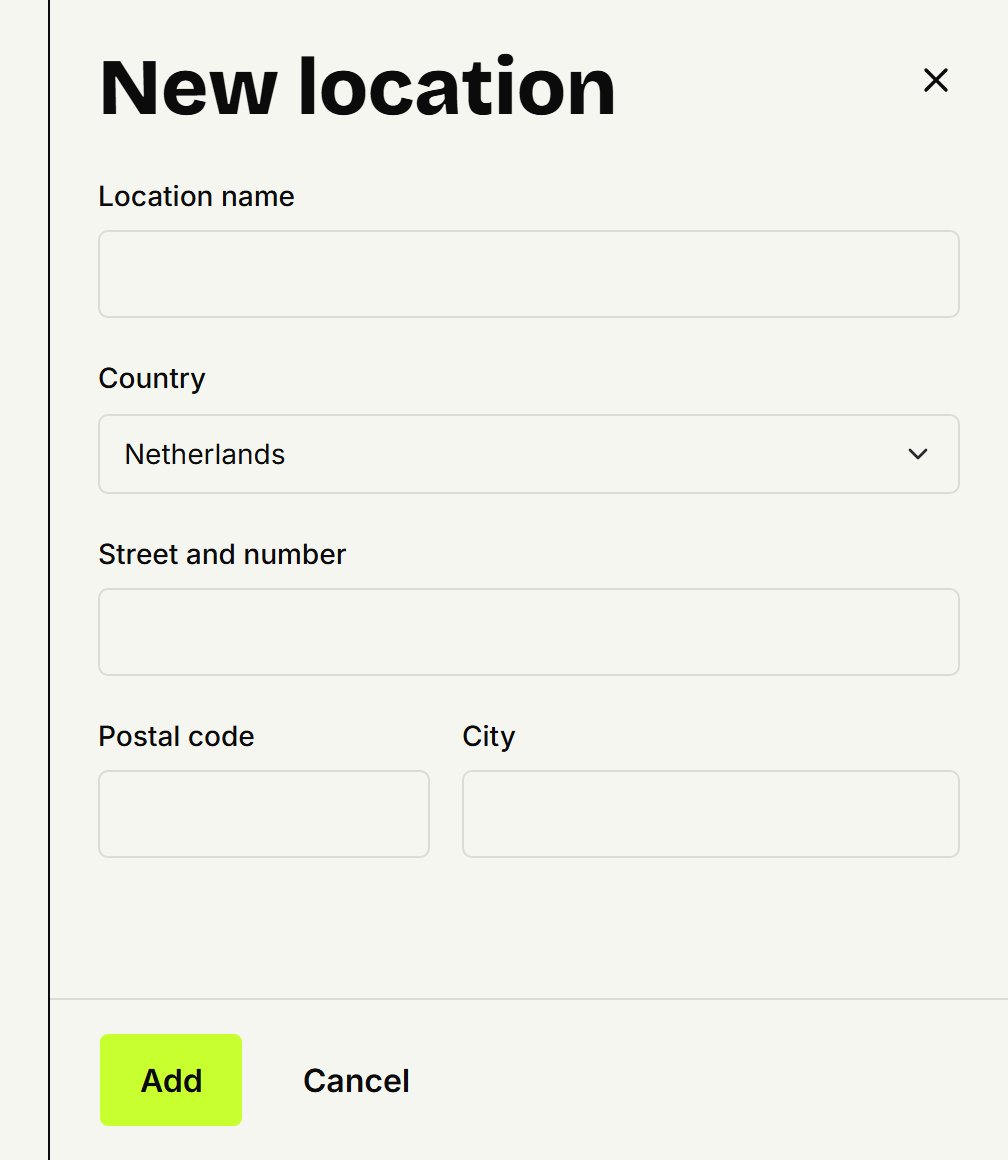
Fill in the Location name, the Country and the address, and click Add. A location can be in another country than your first, as long as it keeps the same time: all of a shop's locations keep one time. So a location in Lisbon next to one in Utrecht isn't possible. The new location's page opens.
Fill in the Opening hours and click Save. Without opening hours, nobody can book there.
Under Barbers, open each barber who works there. Under Working hours, switch on Works here at the new location, fill in the times and save.
A barber can work at several locations, but never at two at the same time.
Changing a location
Under Locations, click Manage. There you change its opening hours, address, Photo and Closed days. You can't remove a location yourself; email us if you want one gone.
The agenda and your booking link
In Agenda, pick one location under Location, or All locations.
With your shop's link, customers choose a location first. Each location also has a link of its own: copy it under Online booking, under Per location. See Sharing your booking link.
Updated on November 17, 2026
Did this help?