
Your opening hours decide when customers can book online. You set them per location, and they also show on your booking page.
Steps
Open Settings. You land on Locations.
Click Manage on the location.
Under Opening hours, switch on the days you're open and fill in the start and end time of each.
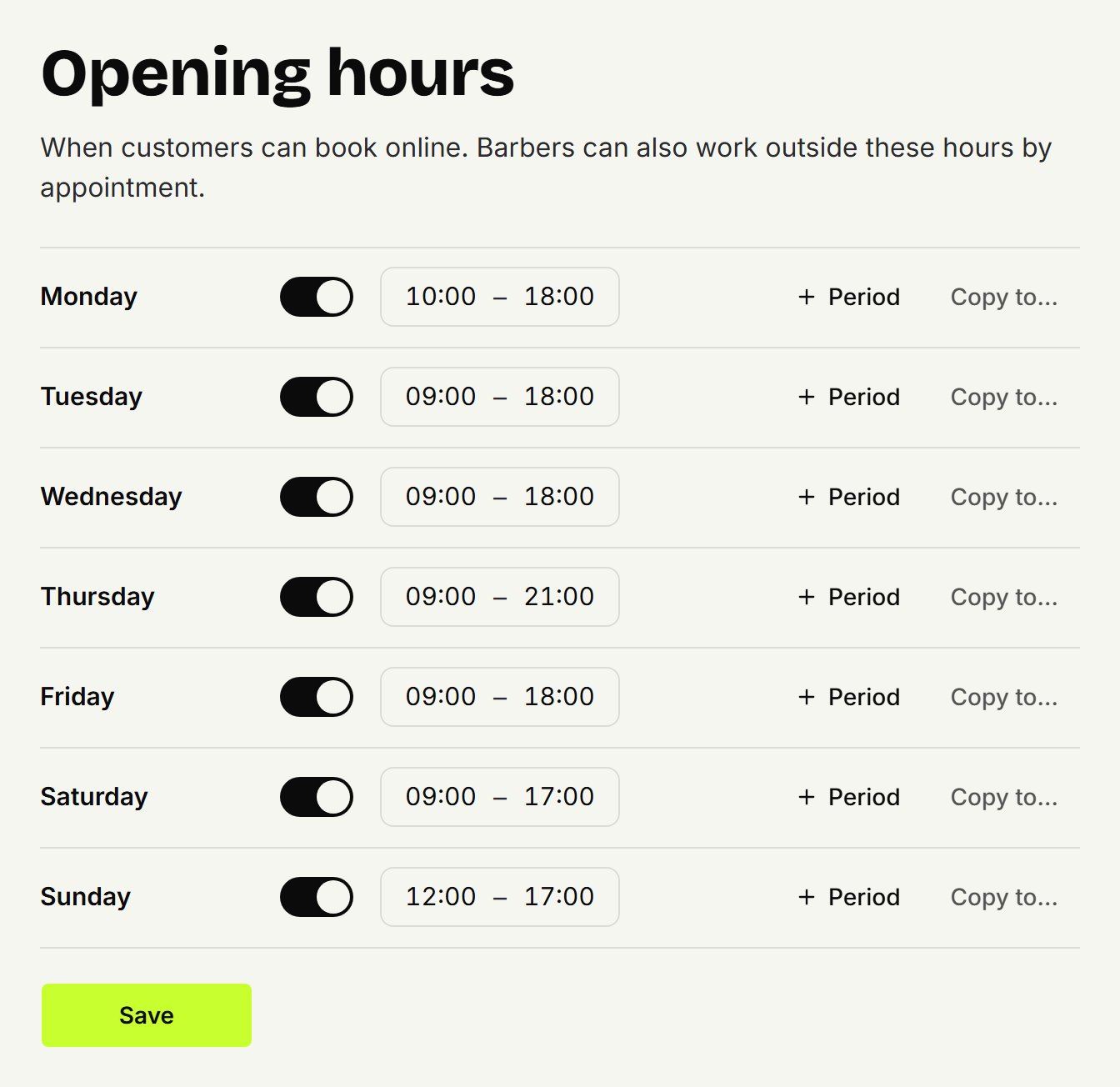
Click Save.
Open twice a day
Closed over lunch? Click Period on that day and fill in the second part of the day.
The same hours on more days
Click Copy to… on a day, tick the other days and click Copy. Then click Save.
Closed for a day
A public holiday, a holiday or a renovation? Under Closed days, pick a Date, add a Note if you like and click Add day. Nobody can book online that day. Appointments already made stay as they are: move or cancel them yourself in the agenda. Remove takes the day away again.
Opening hours and working hours
A customer can only book a time when the location is open and the barber works then. If you open longer, change your barbers' working hours too. In the agenda you can still add an appointment outside opening hours yourself.
Updated on November 11, 2026
Did this help?