
Every barber in your shop logs in with their own account. You invite them by email, and can fill in their profile, working hours and treatments in the meantime.
Steps
Open Barbers and click Add barber.
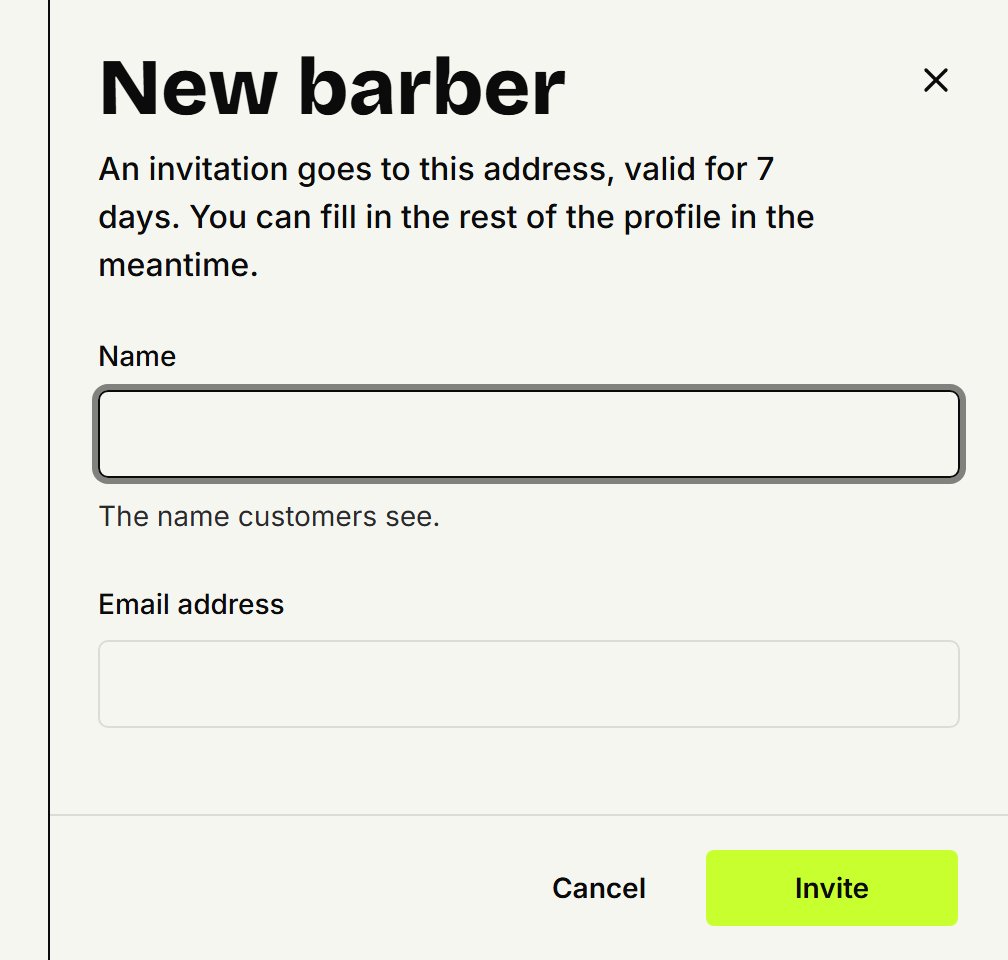
Under Name, enter the name customers see, and under Email address the barber's address.
Click Invite. The barber gets an invitation by email, valid for 7 days, and you land on the barber's page.
Under Working hours, choose where and when they work, and under Treatments tick what they do. Without treatments they don't appear on your booking page.
How the barber gets in
The barber opens the link in the email, chooses Create account or Log in with the address the invitation went to, and clicks Accept invitation. The app works too: once they've signed in, the invitation is waiting.
Expired, or never arrived? Open the barber and, under Access, click Send again. Withdraw invitation withdraws it.
Do you cut too?
Click Add myself. You're added to the list without an invitation. Then fill in your working hours and treatments, and customers can book you as well.
Removing a barber
Open the barber and, under Remove barber, click Remove.
Click Yes, remove.
The barber can no longer log in to your shop. What already happened stays on record under their name. If they still have appointments planned, you see how many first. Those stay in the agenda: move them to a colleague or cancel them, as in Moving, changing or cancelling an appointment.
Updated on November 11, 2026
Did this help?