
With the code from coupehub, booking itself sits on your website: customers pick a time there, without leaving your site. Jimdo has two kinds of website, and only one of them takes code:
Jimdo Creator: you paste the code into an HTML element.
Jimdo Website Builder: according to Jimdo, you can't add your own code there. You add a button that goes to your booking link instead.
The editor tells you which one you have. If it has a bar at the top with a menu on the left, and its address starts with cms.e.jimdo.com, it's Creator. If the address starts with builder.e.jimdo.com, it's the Website Builder. There is more about the code under booking on your own website.
Steps in Jimdo Creator
In coupehub, open Settings and choose Online booking.
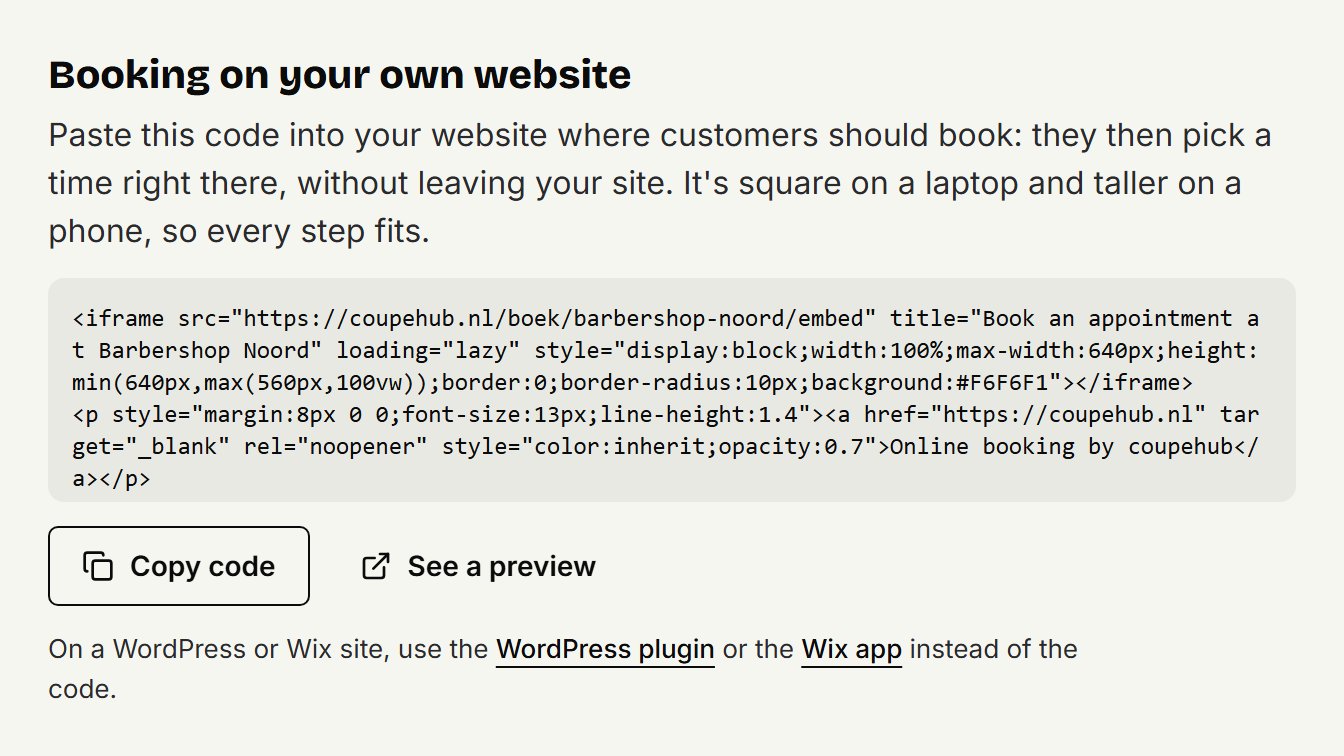
Scroll to Booking on your own website and click Copy code.
Log in to Jimdo, choose your website and click Edit.
On the page, go to the spot where customers should book and click Add Element, then More elements and Add-ons.
Choose the Widget/HTML Element and paste the code into it.
Click Save. In Jimdo Creator a saved change is on your website straight away. If you don't see the booking, reload the page.
Then look at your page on your phone too, and check that the whole booking shows properly.
In the Jimdo Website Builder
Copy your booking link in coupehub: open Settings, choose Online booking and, under Links to share, click Copy.
Log in to Jimdo, choose your website and click Edit website.
Click the button or image customers should use to book.
Click the chain link icon, choose URL or Email, paste your booking link and confirm with the checkmark.
Customers then book on your coupehub booking page. See sharing your booking link for more about that link.
Updated on November 11, 2026
Did this help?