
With the coupehub app, booking itself sits on your Wix website: customers pick a time there, without leaving your site. You install coupehub Booking from the Wix App Market and paste your booking link into its widget; no code needed. There is more about booking on your site under booking on your own website.
Steps
In coupehub, open Settings and choose Online booking. Under Your shop, click Copy.
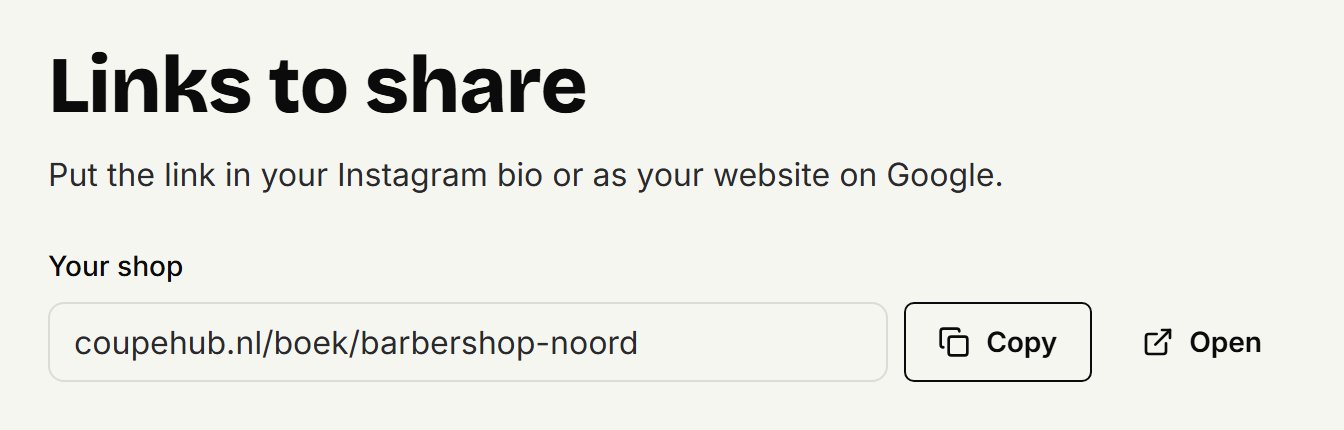
Open your website in the Wix Editor and, on the left, click Add Apps. In Wix Studio, click App Market on the left, then App Market again.
Search for coupehub, click coupehub Booking, then +Add to Site. Confirm with Allow and Add.
The coupehub booking widget is now on your home page, showing a sample of the booking. Click the widget, then Settings.
Paste your booking link under Booking link or code and click Embed. After a quick check it says Saved, and the widget says Linked with your booking page's address.
Drag the widget to where customers should book.
At the top right, click Publish.
In the Harmony editor, click + Add at the top left and use the arrow to go to Apps. Search for coupehub there and click Agree & Add.
What you see in the editor
The editor always shows the sample, even once your link is in: Wix doesn't show the real booking there. Visitors never see the sample. Your published site shows your own shop's booking, with no link to coupehub. To open your booking page itself, click View your booking page in the settings.
On a phone
Check in the editor's mobile view that the widget is tall enough, about 640 pixels, and look at your page on your phone after publishing. On a Wix site in Dutch, French, Spanish or German the booking is in that language, on any other in English.
With your own domain
If your booking page is on your own domain, your shop isn't in your booking link, and the widget says there's no coupehub booking link in it. In coupehub, copy the code under Booking on your own website instead and paste it under Booking link or code. The widget finds your shop in it.
With the code instead of the app
You can also paste the code from coupehub into a Wix HTML element. A small link to coupehub then sits under the booking.
In coupehub, go to Booking on your own website and click Copy code.
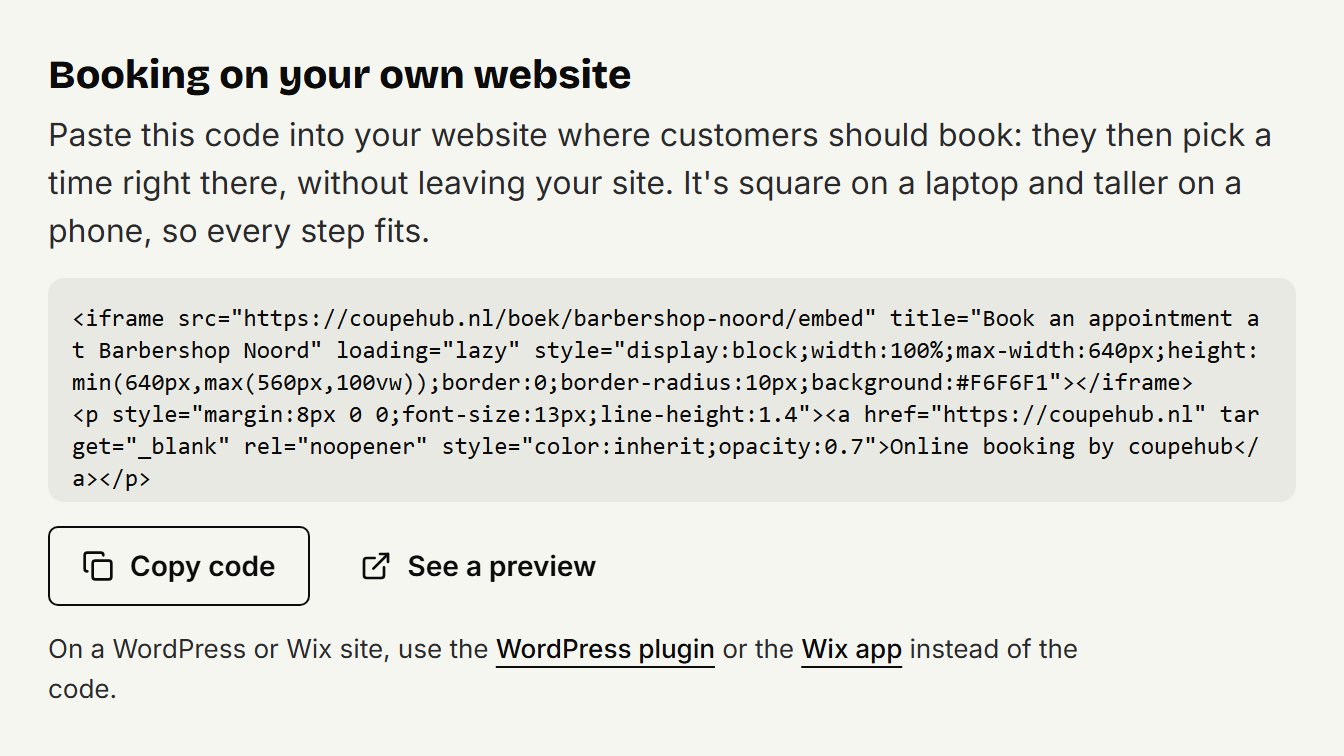
In the Wix Editor, click Add Elements on the left, then Embed Code, Popular Embeds and Embed HTML.
Click the new element, then Enter Code. Paste the code under Add your code here and click Apply.
Drag the handles around the element until the booking fits in it completely, with the line below it: about 660 pixels wide and 700 high. In the mobile view, make it about 620 pixels high.
At the top right, click Publish.
In the Harmony editor, click + Add at the top left and select Elements. Hover over More Options, scroll down, click Embed and drag Embed code onto your page. Click Settings on the action bar and paste the code under Enter HTML embed code.
Doesn't it work?
Then put a button on your page that goes to your booking link. See sharing your booking link for where to find it.
Updated on November 16, 2026
Did this help?